
NEW INSTRUMENT FEATURES
The Instrument List window
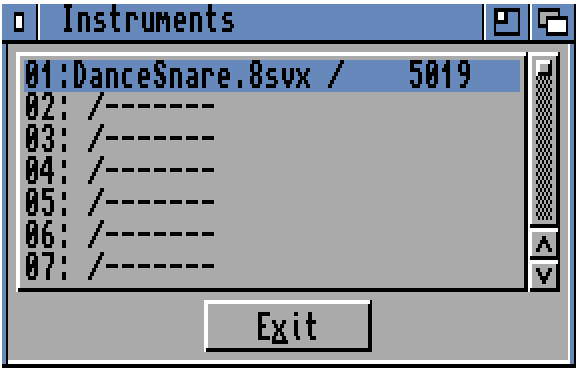
Pick Select from the Instr menu. The Instrument List is a Block List for instruments; it lists all instruments with their sizes, and allows you to select one. So it is an at-a-glance list of all your instruments, and an alternative to using the Instrument Properties window or Shift-←/→ to select instruments.
Sizes are shown on the right of a / sign. The size format is the same as in the Main Control's instrument size box. A reminder:
- The size in bytes is shown (except for MIDI or synthetic instruments)
- -Synth- refers to a synthetic instrument
- M Cxx refers to a MIDI instrument, where xx is its MIDI channel number. If the instrument isn't truly MIDI - perhaps it is a sample with a MIDICh value set - a is also displayed
- H is shown for hybrid instruments
- E is shown for ExtSamples (samples with two extra low octaves: All ordinary samples in Mix mode have these extra octaves, not just ExtSamples)
- W is shown for 16-bit instruments (W stands for Word or Wide - take your pick!)
- ' is shown for an instrument in Fast memory
- Instrument Parameters window changes
- For a start, it isn't called Instrument Parameters any more! We're sure you'll agree, “properties” is a much nicer and more common word than the grotesque “parameters”. In fact, there have been a fair number of name changes throughout the program; all should be self-explaining.
- “Loop Ping-Pong” is only used in Mix mode. When on, OctaMED plays the sample's loop (if it exists) in a different way: forwards and backwards alternately.
- In other words, the sample is played until the end of its looped part; the looped part is played backwards from its end to its start; the looped part is then played forwards from its start to its end; then backwards; then forwards; and so on. Try it out!
- The Loop gadgets finally have sensible names…
Sample Editor changes
Monitor and Digitize now open the Toccata Capture window, if Mixing Settings' Output Device gadget is set to Toccata. The window already opens if the current instrument's output device is set to Toccata, in the Instrument Type window. However, individual instruments' output devices are ignored in Mix mode.
Period values in the sample editor are now frequencies. Specifying a note by its frequency is much more common than using its period, and the new method is well suited to the new Mix mode.
The default Pitch note is still C-2, with a frequency of about 8200 Hz. (The frequency differs slightly depending on the output device used, to allow for the deficiencies of some output devices - including the Amiga audio system.)
If you configured OctaMED V6 to a different default Pitch value, the period value will automatically be converted to a frequency. As a result of the change to frequencies, the Settings menu item “Pitch In Hz” has been removed: The pitch is now always in Hz. In the Change Pitch window, the source and destination values are given in frequencies.
There's a new submenu in the Tools menu: Raw Sample Conversion. If you load a Raw sample that sounds very distorted and noisy, try using this submenu to correct it.
OctaMED's samples are stored in ‘signed' format. Most samples originating on PCs are ‘unsigned', so use “Unsigned <-> Signed” to convert them. Use “Swap Byte Order” on noisy 16-bit samples. Each value of a 16-bit sample takes 2 bytes of memory. “Swap Byte Order” swaps the order of each value's bytes. This can solve distortion problems.
There are two types of memory: “Chip” memory and “Fast” memory. Fast memory is much faster than Chip memory, so it's preferable to store things in there. However, the Amiga usually needs all samples to be stored in Chip memory.
In the Soundstudio, you can now store samples in either type of memory. So if you have plenty of Fast memory to spare, switch on Load Samples To Fast Mem in the Instr menu. Now, any samples you load will be stored in Fast memory unless there is not enough Fast memory available, in which case Chip memory will be used.
However, depending on the channel mode of your song, you may have to use the new “FastMemPlay” feature to play samples from Fast memory. FastMemPlay must be used if the song is in:
- 4-channel mode
- 5 to 8-channel mode, and contains non-paired tracks
To switch on FastMemPlay, open the FastMemPlay window through the Settings menu, then click Active. A small Buffer Size value, such as 16 or 32, is recommended to minimise distortion if your song contains synthetic sounds. Increasing the buffer size slightly decreases the processor load, because technically it reduces the number of interrupts. The value range is 16 to 400.
FastMemPlay plays samples from Chip as well as memory. Even if all your samples are in Chip memory, you may want to switch FastMemPlay on, because you can play samples of any length (the limit is usually 131072 bytes), and samples can also have odd loop start/length values (as opposed to even values).
Load Samples To Fast Mem is automatically turned on when Mix mode is selected, to take advantage of the increased speed (Mix mode needs all the processor time it can get!). So to load samples into Chip memory in Mix mode, switch this item off.
Samples should really be either all in Chip memory or all in Fast memory, not shared between the two types. They have to be in Chip memory if FastMemPlay is not used under the two channel mode conditions above, and although FastMemPlay can play Chip memory samples, it makes sense to store them all in Fast memory for the added speed.
So if you decide to store samples in Fast memory, any samples currently in Chip memory must be moved to Fast memory. The Move Samples To Fast/Chip Mem (Instr menu) exist for this purpose. If there isn't enough of the target memory to hold all the samples, a requester appears. Free some Fast or Chip memory and try again.
There's a new addition to Main Control's instrument size display box (on the far right), to support Fast memory samples. If there's an apostrophe after the sample size (e.g. 5892'), the sample is stored in Fast memory. Otherwise, it's in the usual Chip memory.
Other changes
When saving instruments in all formats except Raw, the frequency that corresponds to the instrument's Default Pitch setting in Instrument Properties is now saved. If the pitch is blank, 8363 Hz is used. Because of the difficulties with converting frequencies to exact notes, sample frequencies are not loaded.
There's a new menu in the Sample List Editor: Format. It controls the file format of samples saved using Save Inst or Save All Insts. There's a different menu for 8-bit and 16-bit samples, so you can (for example) save 8-bit samples as Raw but 16-bit samples as WAVE.