
EDITING THE SONG
Of course, part 2 is a very simplified guide to song creation. In particular, OctaMED provides a number of editing features for use in the Tracker editor that can make entering notes much easier.
Cut/Copy/Paste/Swap
You may recognize the terms cut, copy and paste from wordprocessors. Well, in OctaMED they are exactly the same: Cut removes notes and stores them in a copy buffer, Copy stores notes in a copy buffer without removing them, and Paste transfers the copy buffer to the Tracker editor, overwriting any existing notes.
Items in the Block and Track menus allow you to cut, copy or paste whole blocks or whole tracks respectively. For example, to place a copy of track 0 in track 3: move to track 0 (using Alt-← and Alt-→), and select Copy from the Track menu. Now move to track 3, and select Paste from the Track menu. The Swap items swap the current block or track's contents with the copy buffer's contents.
You can also cut, copy and paste a rectangular area of notes, known as a “range”. A range can be as small as a single note or may include an entire block. Mark a range by moving the mouse over notes in the Tracker editor while holding down the left mouse button. The range appears in white. Moving the mouse beyond the limits of the Tracker editor continues the range in the relevant direction (for example, try moving the mouse to the bottom of the screen while holding the left mouse button).
The Edit menu contains Cut, Copy and Paste Range items. Erase Range changes all the notes in the range to blank notes (— 00000). If you mark a range by mistake, press the left mouse button again to cancel it. Make the range reappear by selecting Re-mark Range from the Edit menu.
Transpose
Select Transpose from the Edit menu. This window contains functions that alter the notes in a particular area of the current project.
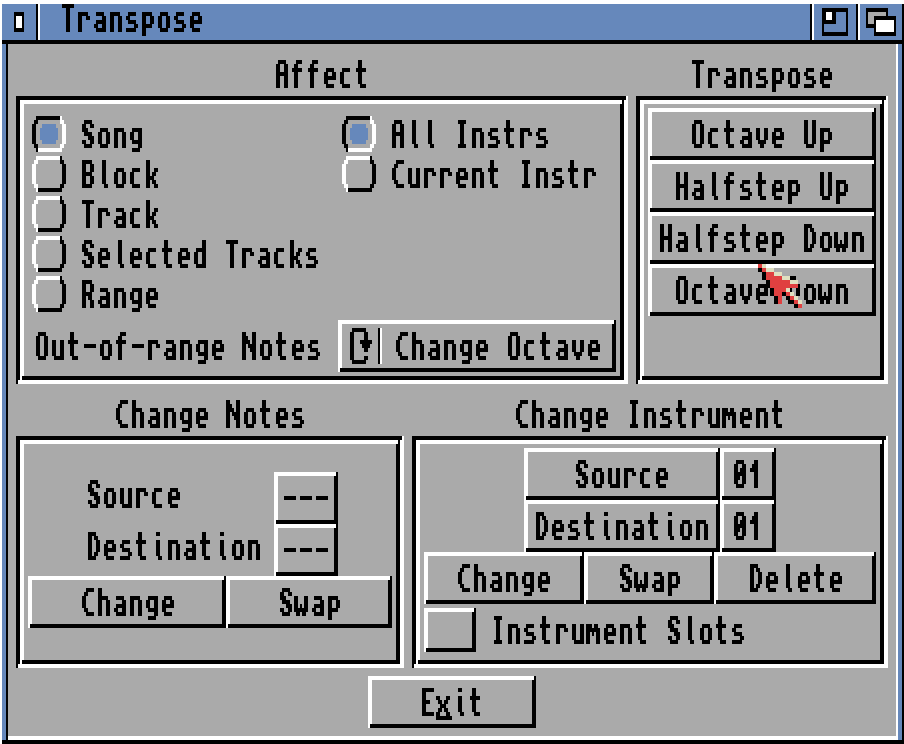
The gadgets under Affect should be selected before choosing a transpose function. They select which area of the song the transposition should affect, and the notes played by which instruments. The pitch-changing functions are Octave Up/Down and Halfstep Up/Down; these should be self- explaining.
The Change Notes functions act on the Source and Destination notes. Select these notes by holding down the left mouse button on each note box in turn and pressing the appropriate key (for example, the I key selects note C-3). The Change button changes all notes in the Affect area (see above) from the source to the destination note. Swap swaps the source and destination notes.
A more complicated and powerful note-changing feature is Replace Notes, new to the Soundstudio. See part 14.1 for more information.
The Change Instrument functions act on the Source and Destination instruments. Select these instruments by choosing each required instrument (using Shift← and Shift→) and clicking the Source and Destination buttons. The Change button changes notes played by the source instrument to the destination instrument (in the Affect area). Swap swaps the source and destination instrument numbers of notes played by either. Delete deletes notes played by the source instrument.
If you switch Instrument Slots on, the Change Instrument buttons affect the actual instruments, rather than notes played by the instruments. So click Change to move the source instrument to the destination instrument position, or Swap to swap the two instruments' positions. Delete removes the source instrument from memory; there are five ways of doing this in OctaMED!
Track selection
Look at the top of the Tracker editor; the blue boxes are the track selectors. They are blue when on, grey when off. Try clicking on a few to turn them off and on.
You'll notice that there are two types: one displaying the track numbers, one displaying S. The track number type control whether each track is played or not played. For example, load a song and click Song Play (Main Control). Now keeping the song playing, try turning the track numbers on and off. Do you notice the notes in the related tracks being turned off and back on? This can be very useful while editing blocks.
The S stands for Selected, and this type control whether each track is ‘selected' or ‘not selected'. They are used in editing functions such as Paste To Selected Tracks in the Edit menu and Affect Selected Tracks in the Transpose window.
Programmable keys (progkeys)
The progkeys allow music to be entered much more easily and quickly. You can assign notes or groups of notes, including player commands, to 10 different keys. The assigned notes can then be inserted anywhere in the Tracker editor by holding down Shift and pressing key 0-9.
Select Programmable Keys from the Settings menu. The cycle gadget in this window selects whether you wish to edit the normal Shift- 0-9 definitions (default) or the Right Alt definition. The Right Alt definition consists of the command digits only, and if you enter notes with the Right Alt key held in the Tracker editor, these command digits will be inserted with the notes.
Select which progkey you wish to edit (0-9) using the slider. The box containing — 00000 is the definition of the selected progkey. Edit the progkey one digit at a time, by holding the left mouse button on each digit and entering a new note or digit using the keyboard.
To make a digit transparent (shown by an x), press Return while holding the left mouse button. A digit being transparent means that when the progkey is entered in the Tracker editor, the corresponding existing digit will remain unchanged. For example, the definition xxxxx0000 would set all command digits to zero while leaving the note and instrument number unchanged.
The Pick gadgets copy either the note under the cursor, the currently marked range, or the copy buffer to the current definition.
Some other editing functions in brief
Space (Main Control window): When on, a set number of lines are skipped when a note is entered. Select Keyboard Options from the Settings menu, and adjust the Space Value slider to set the number of lines (default is 2).
Expand/Shrink (Block menu): Expand inserts empty lines between each existing line; Shrink removes lines. If the Factor box in the window contained 3, for example, clicking Expand would insert two empty lines between each note (trebling the block length), and clicking Shrink would remove every second and third line (thirding the block length). It has the effect of slowing or quickening the music. Its function should become clear with some experimenting.
Highlight Options (Block menu): Here you can highlight the current block's lines in a particular order. This can mark measures and beats for you. Try clicking the 4 gadget to highlight every fourth line: In a normal 64-line block, this highlights every beat.
Next up: The sample editor.