
THE SAMPLE EDITOR
Making sure a sample is loaded into the current instrument slot, select Display menu from the Sample Editor (or click Edit in the Main Control window). The squiggly black line in this window is the sample's waveform, which is a graphic representation of the sample.
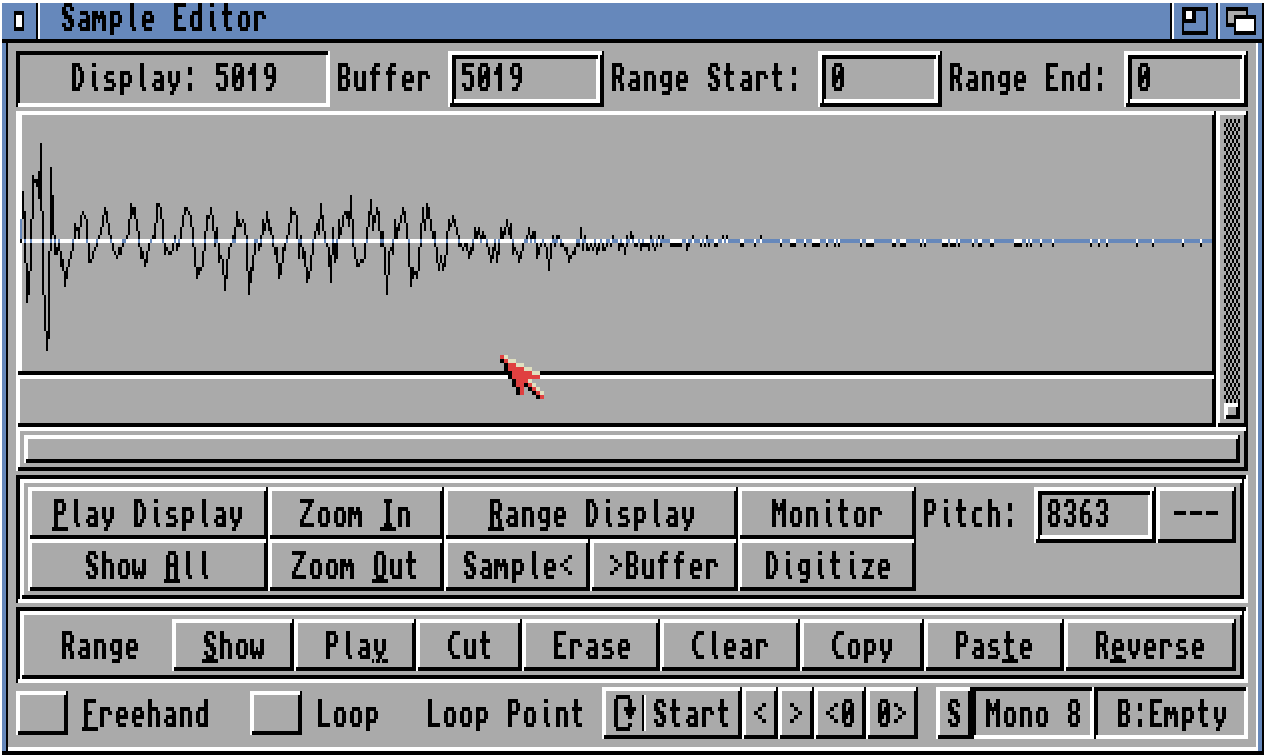
The sample editor is used to change the whole or part of the waveform. This can involve copying sections of waveform to other places in the sample, changing the volume or pitch of the waveform, creating echo effects, and much more.
The white line across the center of the waveform marks zero volume. The further away from the white line a point on the waveform is, the louder the point's volume.
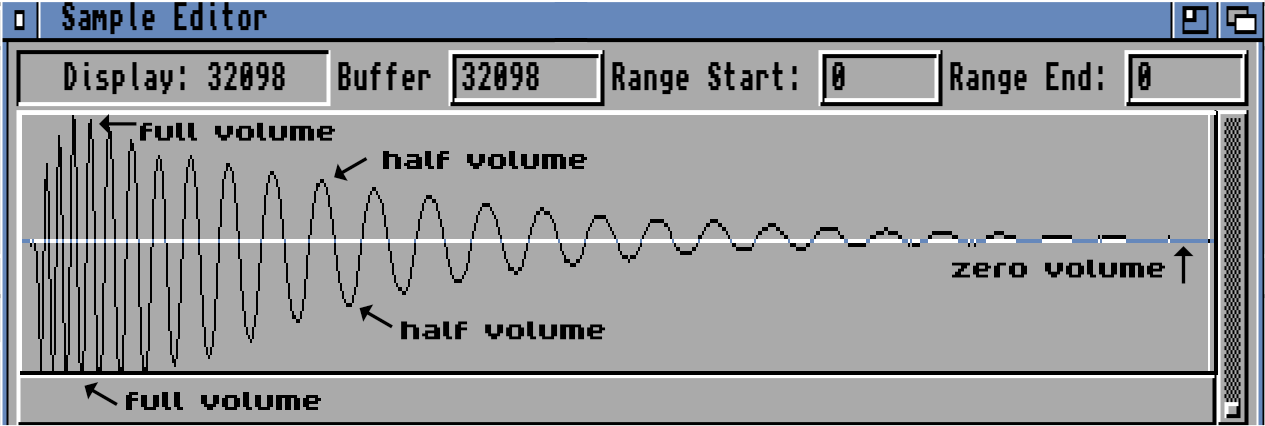
The number to the right of Buffer (above the waveform in the middle) is the size of the current sample in bytes. (In the diagram above, the sample's size is 32098 bytes). Type a new number into this box to change the sample's length.
Magnification
Try using the Zoom In and Zoom Out buttons to magnify and reduce the display. The black horizontal scroll bar just below the display shows the section of sample currently being displayed: drag it or use the ← and → keys to change the current sample section. The Display box (top left) shows how many bytes of sample are currently displayed.
You can also magnify and reduce the display using the small vertical zoom scroll bar (far right). The higher the scroll bar, the greater the magnification. Click Play Display to play the current display at the pitch shown just below the display on the right (note C-2 by default). Change this pitch by holding down the left mouse button on the pitch box and pressing a new note. When you've finished, click Show All to display the whole sample.
Range operations
Just as in the Tracker editor, you can mark a range by moving the mouse over the waveform while holding the left mouse button. Hold a Shift key while doing this to adjust an existing range. The byte positions of the start and end of the range are shown by Range Start and Range End (top right). Click Range Display to mark a range over the whole display.
Eight range-affecting buttons are situated near the bottom of the window. Show magnifies the range to fill the whole display. Play plays the range at the current pitch. Cut and Erase both remove the portion marked by the range: Cut also copies the range to a copy buffer. Clear clears the range, Copy copies the range to a copy buffer, and Paste inserts this copy buffer at the start of the range. Reverse turns the range backwards.
Some other range-affecting operations are hidden in the Edit menu. Paste (Overwrite) is like Paste except it overwrites the existing sample contents rather than inserting. Invert turns the range upside-down, Chop removes the whole sample except for the range. In the Tools menu, Calculate Range Time works out the time taken for the range to play at the current pitch.
Special effects
These are all found in the Effects menu, and with the exception of Change Pitch and Mix, all affect the current range. Here are the most important effects in brief:
Change Volume changes the range's volume. The sliders select the starting and ending volume change, and both are percentages of the original volume. For example, setting Start to 200% and End to 50% fades downwards from double the original volume to half the original volume. Click CHANGE VOLUME to change the volume, or choose from one of four presets (Fade In, Fade Out, Halve, Double). Max increases the volume to the maximum possible without introducing distortion. (Distortion occurs when the maximum volume limits are exceeded).
Mix mixes the current sample (source) with the copy buffer (destination), storing the result in the current sample. The sliders control the volumes of the two waveforms to be mixed (50% is ‘normal' volume).
Filter/Boost filters (reduces noise) and boosts (brightens) the range. The Averaging slider controls the strength, and try cranking Distance right up for some weird effects.
Echo allows interesting echo effects to be produced. Before echoing, you usually need to add some extra space to the end of the sample: select Add Workspace from the Tools menu to do this. Mark a range over both the waveform to be echoed and the blank space that the echo is to affect. Echo Rate is the distance, in bytes, between two echoes. Number of Echoes sets the total number of echoes, usually quite low (1 - 10). Experimentation is the key to this feature.
Create Chord creates chords of two to four notes from the current sample. Specify the chord's notes by pressing keys while holding the left mouse button on the pitch boxes (you can also use the eight preset buttons or the four cycle gadgets). Click Play Chord for a preview, and Create Chord to create the chord and store it in the current sample.
Sample loops
A sample loop means that the notes you play with the sample will be sustained until stopped. This is due to a particular part of the sample being continually repeated (or ‘looped').
Try clicking the Loop check box (bottom left). The two loop pointers mark the looped section. One way to adjust them is to drag their small black triangles across the waveform. You can also use the Loop Point gadgets (bottom of window): use the cycle gadget to choose whether to affect the start or end loop pointer, then use < and > to move the pointer in steps of two bytes, or <0 and 0> to move the pointer until a zero is found. The Loop menu also helps loop positioning.
Decent-sounding loops often start and end at the same value, which can often be zero (i.e. no volume). So <0 and 0> are useful in finding good loop points. Magnification allows far more accurate loop positioning, and good loops are often found by looping any repeating waveform shapes in the sample (called envelopes).
Next: MIDI features