
OTHER MISCELLANEOUS FEATURES
The Tempo window
Select Tempo Window from the Display menu. This window is used to set the playing speed (tempo). For basic use, ignore all gadgets except the Tempo slider. The higher the Tempo slider value, the quicker the speed. For more advanced use, read on.
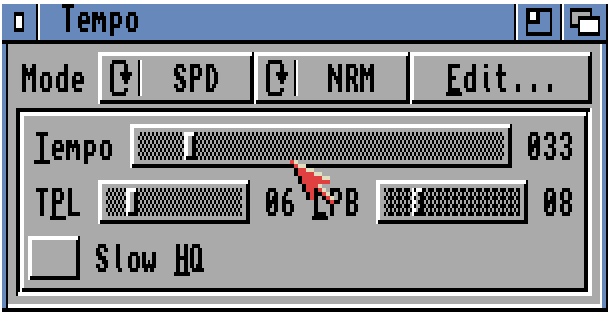
There are two tempo modes: SPD (the default) and BPM. Let's look at SPD mode first. The Tempo and TPL sliders are used in this mode. Each slider alters the tempo in a different way, and to fully understand the difference I'll need to explain a few technical aspects. Don't worry, it's all quite simple really!
To keep ‘in time', OctaMED responds to regular ticks that come from one of the Amiga's clocks. The tempo depends on two factors relating to these ticks:
- The time between each tick (Tempo slider)
- The number of ticks per Tracker editor line (TPL slider)
So each Tracker editor line is divided into ticks. The TPL slider controls the number of ticks per line. With TPL set to 3, two typical consecutive lines look like this:
                                   Line no.  Tick no.   Action
                               /     000        1       Play note C-3
                              /      000        2
  000 C-3 10000 --\ ZOOMED --\       000        3
  001 D-2 10000 --/ ZOOMED --/       001        1       Play note D-2
                              \      001        2
                               \     001        3
So notes are played on the first tick of each line. The other ticks are used for effects such as pitch sliding (although using certain player commands, notes can also be played on the other ticks).
The Tempo slider controls the length of time between each tick. The higher the value, the shorter the length of time therefore the faster the tempo. For normal 4 channel or MIDI songs, Tempo slider values 11 - 240 should be used (ignore values 1 - 10). The TPL slider can be values 1 - 32. The higher the value, the slower the tempo. By default the sliders are set to 33 and 6 respectively.
In BPM mode, the Tempo slider controls the number of beats per minute (just like a metronome). For example, a value of 60 is one beat per second. The LPB slider controls the number of lines per beat. For example, 8 (the default) means eight lines are considered as one beat. In this mode, it's best to leave the TPL slider at 6, otherwise the timing won't be accurate.
5 to 8-channel mode in brief
When composing using OctaMED, you may find that the Amiga's ability to play a maximum of four samples at once (using its four sound channels) is a bit limiting. Luckily, OctaMED allows you to add up to four extra tracks, extending the maximum number of simultaneous samples to five, six, seven or eight; and this feature is called 5 to 8-channel mode.
Firstly, increase the number of tracks to 5, 6, 7 or 8, using the Block Properties window. Next, select Set Options from the Song menu. On the left of this window, click on the appropriate channel mode button. Click Yes and Halve in the requesters, then close the window. Voilà!
Unfortunately, you'll notice some side effects pretty quickly. The volume of all samples halves to minimize distortion. There's a different method of setting the tempo: in SPD mode, you can only use levels 1 - 10. And the quality decreases, but try selecting High Quality Mode in the Song Options window (if you own an A500 or A600, this will only work in 5 or 6 channel mode).
For more details, press Help, click on Playback in the Features Guide and follow the links to 5 to 8-channel mode.
Mix mode
New to the Soundstudio is an incredible new playing mode: Mix. This is an alternative to 4-channel and 5 to 8-channel mode, and is best suited to reasonably fast processors (of the A1200's speed, or faster).
Again usually with a loss of sound quality, you can play up to 64 notes at once, although it's unlikely that you'll ever need this amount! The sound can be sent through a number of “output devices”: Your Amiga - in normal 8-bit or enhanced 14-bit mode, three different 16-bit sound boards, and even straight to disk as an 8-bit or 16-bit sample.
One great feature of the Mix mode is its ability to add playing effects to your music. You'll want to play with Echo and Cross Echo straight away! For more details on the window, see the section for OctaMED V6 upgraders.
ARexx
ARexx support was the most major addition to the previous version of OctaMED. ARexx is one of these ‘buzzwords' used by so many Amiga people, but many users seem to be in the dark as to what it actually is. Well, in relation to OctaMED, it is both a way of adding new features to the program, and a time-saving alternative to mundane tasks.
You use ARexx by typing in an ARexx script, a set of commands (instructions) that ARexx is to carry out. If ARexx were to control a toaster, some of these commands could be ‘start toasting', ‘cancel toasting', ‘set timer' and so on. But we'll be using ARexx to control OctaMED, so commands are more likely to be ‘play song', ‘open the Font window', or ‘mark a range over track 3'.
Well, it would be nice if commands were so informal, but computers currently find informal English pretty difficult to understand! So commands are actually a lot more precise. For example, the instruction ‘set instrument 04's default volume to 32' would in fact be performed by the two commands IN_SELECT 4 and IN_SETVOLUME 32.
OctaMED's ARexx commands are not only used in scripts. Using the Keyboard Shortcuts window (Settings menu), you can assign any key combination to perform any OctaMED ARexx command! This gives you substantial control over the keyboard in OctaMED. As well as executing OctaMED ARexx commands, keyboard shortcuts can be defined to perform an ARexx script, send an ARexx command to another program, or load and run a program.
A similiar facility is now available for player commands. Commands 2D01 to 2DFF can be set up to execute different ARexx commands, as well as the other facilities described above. So you can control OctaMED - and even other programs - from precise points within your song. This opens up huge multimedia possibilities!
For more information, press Help and select ARexx from the Features Guide. A complete list of OctaMED's ARexx commands is given in Appendices D and E.
Multi-modules
Multi-modules are projects containing more than one song. Each song shares the same set of instruments. This allows you, for example, to compose different songs for each level of a game, without having to load or keep the same instrument in memory more than once.
Multi-modules are also very useful when editing just one song, as you can treat one song in the multi-module as ‘workspace', much like Deluxe Paint's spare screen option. You may design and compose in one song, then cut and paste to another.
Adding and deleting songs
Find the Sg 01/01 < > gadgets on the left of the Information window.
Sg opens the Song Selector window, which allows you to add and delete songs in a multi-module, and to choose the current song.
The two numbers (currently both 01) represent the current song and the total number of songs in the multi-module. < selects the previous song. If clicked while holding a Shift key, it deletes the last song in memory after displaying a requester. > selects the next song. If the current song is the last song, it adds a new song after displaying a requester.
Clicking < and > while holding Shift is the same as selecting Delete Last and Add New respectively from the Song menu.
Instrument remapping
OctaMED can automatically remap instruments while loading. This feature can save you a lot of work. If you have one or more songs already in memory, and you load an additional song, a Remap instruments? requester will appear.
If you click No: all previous instruments in the entire multi-module will be lost and the instruments of the new song will be loaded. This could be used, for example, to use the new, different instruments with the other songs in the module.
But if you click Yes:
- The new song's instruments will be loaded into empty places, so that instruments already in memory are preserved;
- The new song's notes' instrument numbers will be redirected (remapped) so that they point to the new instrument positions.
By clicking Yes, several sets of instruments used in several songs can be contributed to one large overall set of instruments. This is the option you'll most often (if not always) choose.
In the Save Options window: the right-hand cycle gadget selects whether to save the whole multi-module (default) or only the current song.
Some other smaller features
Select Set Volumes from the Song menu. This window full of sliders is used to set each track's volume and an overall (master) volume. The ‘relative' part in the window's title bar refers to the relativity between the track and master volumes. For example, setting both master and a track volume to half (32) will produce an actual track volume of a quarter (16).
Select Set Options from the Song menu. Set the current song's name (different for each song in a multi-module) by typing it into the Name text box. The name will appear on the screen's title bar.
Many different settings (preferences) can be saved using Save Settings in the Settings menu. For a full list of saved settings, press Help, select Appendices from the Quick Guide and follow links to the settings file.
In your country, if the note between A## and C is H instead of B (for example Germany and Finland), select Miscellaneous from the Settings menu, then click H -> B in the window and save settings.
That's all, as mentioned at the start of this introduction, press the Help key to reveal instructions for almost any part of the program. You can find out more about the new OctaMED Soundstudio features by reading the next part of the manual.