
THE COMPONENTS OF A SONG
The instruments
(Note: Shift→ (for example) means hold down a Shift key and press the right arrow key.)
The current instrument's details are displayed at the top of the Main Control window. 01 is its number, with it's its name and size in bytes. Select the next instrument (number 02) by pressing Shift→. Repeatedly press Shift→ to view all the instruments in the song.
Notice that not all instrument ‘slots' (available spaces) have to be used by a song out of the possible 63, also notice that the numbering system used is unorthodox: 01 - 09, 0A - 0V, 10 - 19, 1A - 1V. 1V is the final instrument slot, the 63rd.
OctaMED can use five different ‘types' of instrument, and easily the most commonly used type is the sample. Samples are sounds from real-life, often created by feeding the sound into the computer from a sound source (e.g. tape recorder). All the instruments used in this song are samples.
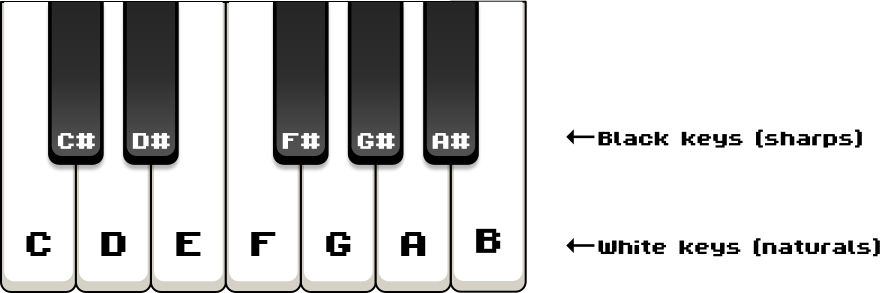
Repeatedly press Shift← until the instrument number becomes 01. Now let's try playing the instruments; this is done using the Amiga's keyboard. OctaMED arranges the keyboard into about 2½ octaves, laid out to resemble a two-tier piano keyboard.
Piano keyboard layout: the notes of one octave
Amiga keyboard layout
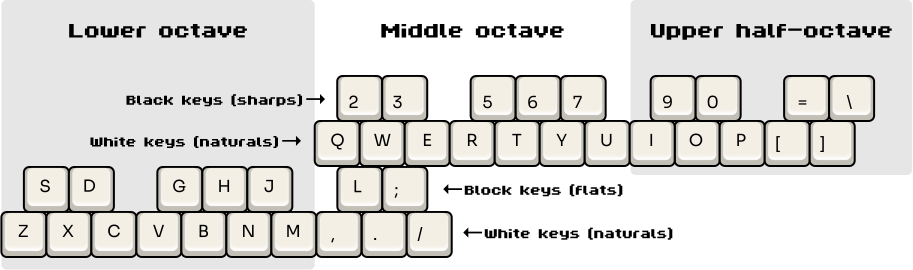
Try playing notes with the keys listed above. For example, press the following keys in turn to play a C major scale:
Z X C V B N M Q W E R T Y U I O P [ ]
Use Shift← and Shift→ to change the instrument that the notes are played on.
The blocks
A song is made up of several small pieces of music called “blocks”. Blocks consist of many lines of information, and are displayed in the Tracker editor (the middle window). Only one block can be displayed at a time.
All the blocks in this song contain 64 lines and 4 columns (or tracks). The lines are numbered 000 - 063 on the far left, and the tracks are numbered in small blue squares at the top of the window. Try using the ↑ and ↓ keys to scroll through the block. You can also do this by dragging the grey or white scroll bar at the far right of the Tracker editor.
In the Information window, find the block status display (to the right of the B button). It will display something like:

In this example, block number 6 is currently being displayed in the Tracker editor; that is, it's the current block. The current block's name is Synth (part 2), and block number 25 is the last block in the song. Note that the first block's number is 0 (zero) rather than 1.
Watching the changes to the block status display and the Tracker editor, try using Shift↑ and Shift↓ to select a new current block. Left Alt - ↑/↓ selects the first/last block.
To listen to the current block, find the playing buttons on the left-hand side of the Main Control window. Click on the Play button beside Block. Use STOP or the space bar to stop the block, and Cont to continue the block. When the block has played through, it will start again. Stop the playing when you've heard enough.
The block's contents
So just what do all these letters, numbers and dashes displayed in the Tracker editor mean? Well, the Amiga plays music using four sound channels, each of which can play one sample at a time. The four tracks (columns) in the Tracker editor correspond to these sound channels.
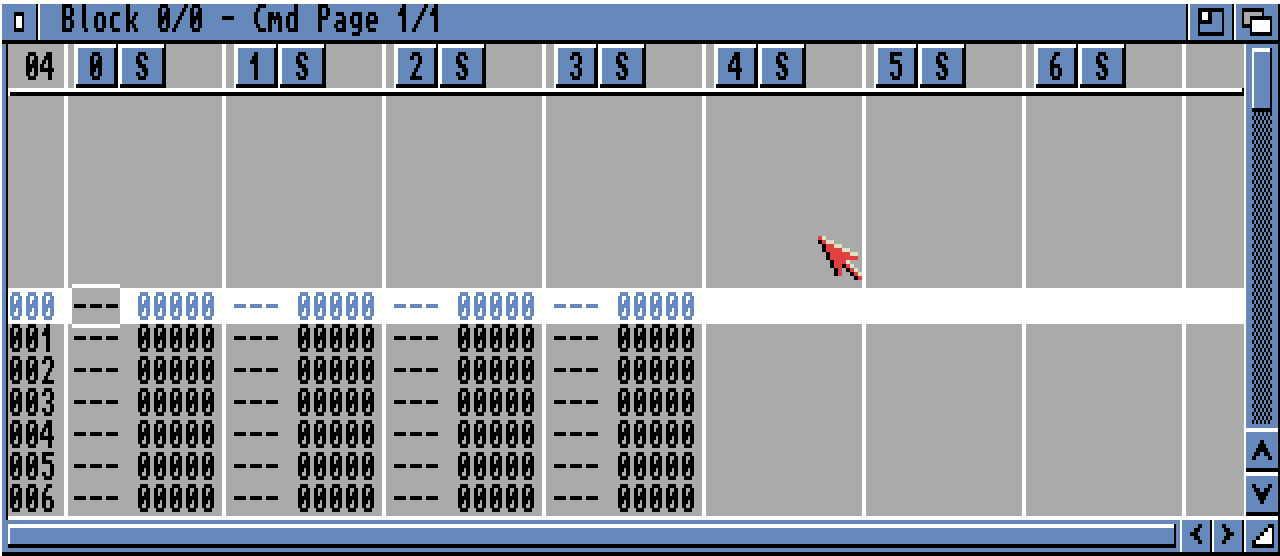
Music is composed by entering notes on to these tracks. A typical note might be C-2 10C32. Here's how this note is made up:
   octave    player command type
   number      /|
      |     / |
   C - 2   1 0 C 3 2
   |       |     \ |
note    instr.    \|
name    number   player command level
So note C is played on instrument number 01 using octave number 2. The note also has a player command (0C32), which means ‘set the note's volume to level 32'. Octave numbers and player commands will be explained later.
The playing sequence
To create a song, the blocks are linked together. This involves creating a list of blocks in the order in which they should be played. This list is called the playing sequence.
Look carefully at the Information window, and notice that there are two buttons that seem to be called Sq. Look again and you'll see that the left-hand one is actually Sg. Click on the other one to open the Playing Sequence window.
In this window you'll find a list of block numbers and their names. On the left are two columns of numbers. The left-hand column contains the playing sequence line numbers, the right-hand column the block numbers on each line. Although the line numbers are in ascending order, the block numbers can be in any order and the same number can feature more than once in the list.
When the song is played (by clicking Song Play in the Main Control window), the song starts playing from playing sequence line 001. Each block in the sequence is played in turn, the block currently being played marked with a blue bar.
Close the window by clicking either its close gadget (far top left) or its Exit button (bottom).
Next, let's see how a song is created.